
Printing a PDF as a book takes an imposition step that rearranges the pages onto sheets so they read in order after folding, a printer that prints both sides at actual size, and a way to hold the folded sheets together: staples, thread, or glue. The first is software. The other two are a home printer and an afternoon.
You have a PDF and you want a real book: pages you turn, a spine you can hold, something that sits on a shelf. The obvious move is to hit print and feed the stack into a folder or a stapler. It never works. Print pages 1, 2, 3, 4 straight through, fold the pile in half, and the numbers land out of order. The problem isn't your printer and it isn't the file. A folded book reads in an order that has nothing to do with the order the pages print in. This is the whole path, from a flat PDF to a bound book, and where each piece fits.
What does it mean to print a PDF as a book?
To print a PDF as a book means rearranging its pages so that when you print them, fold the paper, and bind the folds together, the pages read in the right order. A document is laid out to scroll straight through on a screen. A book is built from folded sheets, and folding scrambles the order. The work is in the rearranging, which is called imposition, and a tool does it for you so the printed sheets fold into a correct book.
Everything else is mechanical. You print on both sides of the paper, fold the sheets, and hold the folds together with staples, thread, or glue. The one part you can't eyeball is the page order, because folding is what makes it counterintuitive. Get the imposition right and the rest is craft you can learn in an afternoon.
Folio does the imposition in your browser. Your PDF never leaves your device: there's no upload, no server, no account needed to lay out a booklet and download the print-ready file. Open your PDF in Folio to see the imposed sheets before you print anything.
Why can't I just print pages 1, 2, 3 in order?
Because folding a stack of paper in half puts the first and last pages on the same sheet, back to back, not pages 1 and 2. Fold one sheet down the middle and you get four pages. The reader sees them as 1, 2, 3, 4, but on the flat sheet page 1 sits next to page 4, and page 2 backs onto page 3. Print in plain numeric order and the fold scatters the pages.
Here is the smallest real case. Take a single sheet, fold it once, and you have a four-page booklet, what binders call a folio. For the reading order to come out right, the printed sheet has to carry its pages like this:
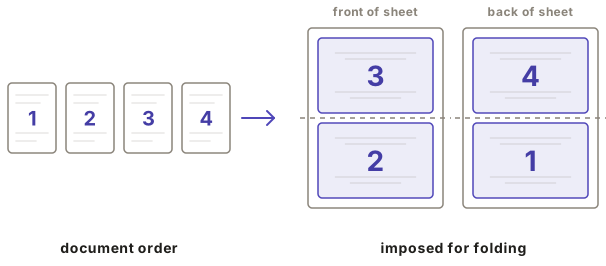
The front of the sheet holds pages 3 and 2. The back holds pages 4 and 1. There's a quick way to check any imposed side: the two page numbers on it always add up to one more than the total page count. Four pages here, so every side sums to five (3 + 2, and 4 + 1). Fold that sheet down the middle and the pages fall into 1, 2, 3, 4 exactly as the reader expects.
Scale this up and it only gets less intuitive. Nest several folded sheets inside each other to make a thicker section, and the page that prints beside page 1 might be page 24. No one wants to work that ordering out by hand for a hundred-page manuscript. That's the job a layout tool exists to do.
What is a signature in bookbinding?
A signature is a group of sheets folded together as one unit, which you then sew or staple at the fold. A book is rarely one big folded stack. Fold too many sheets at once and the bundle gets thick, springy, and ugly at the spine. So binders fold paper into modest sections and bind several sections together into the finished book.
The simplest book is a single signature: a few sheets nested inside each other, folded once, and stapled through the fold. That's a saddle-stitch booklet, and it's the right structure for a zine, a program, or a short story. There's a practical ceiling, though. Past roughly twenty sheets the fold stops closing cleanly and the inner pages bulge out (an effect called creep, more on that below).
Longer books are built from several signatures sewn together. You fold and bind each section on its own, then stitch the sections into a text block and attach a cover. That's how a novel-length book holds together flat and durable. Folio's Guided Binder mode is built for exactly this: it splits your page count into even sections and walks you through folding and sewing them. How many sheets go into each section is its own decision. The signature size guide works through it.
How do I turn a PDF into a printable booklet?
Load the PDF into an imposition tool, choose your paper size and binding style, and export the rearranged PDF, then print it double-sided and fold. The tool handles the page reordering. You handle the paper and the folding. In Folio the flow is short:
- Open your PDF in Folio. It reads the page count and size right in the browser.
- Pick a mode. Print & Fold for a single-section booklet, Guided Binder for a longer sewn book.
- Choose your sheet size (the paper you'll feed the printer) and your binding edge.
- Preview the imposed sheets, then export the print-ready PDF.
- Print it double-sided at actual size, fold, and bind.
A couple of things happen automatically that are worth knowing about. If your page count isn't a clean multiple of the pages-per-sheet, Folio pads the end with blanks so the last fold is complete. And the exported PDF carries a PrintScaling: None hint that tells a conforming PDF viewer to default its print dialog to actual size, because printing at the wrong scale is the most common way a good imposition still comes out wrong.
The printing step has its own pitfalls, separate from the layout. If your output comes out shrunk, shifted, or upside-down on the back, that's the print path, not the imposition, and it has a fix for each symptom. See Calibration & Printing for the driver settings that matter.
Which binding style should I use?
Use a single-section saddle-stitch booklet for anything short, and multi-section sewn binding for anything long enough that one folded stack would bulge. The dividing line is roughly the thickness of the fold. A thin book wants to be one folded section stapled at the spine. A thick one wants to be several sections sewn together, or a glued spine if you'd rather skip the needle.
A saddle-stitch booklet is the fastest path to a finished object. Nest the sheets, fold once, staple through the fold, done. It suits zines, chapbooks, short stories, event programs, and sample booklets. If that's your project, printing a zine at home walks through the single-section workflow end to end.
Sewn binding is the structure for books with real heft: novels, manuscripts, comics, anything where a single fold would be too thick to close. You bind each section, then sew the sections into a block. It's more work and it lies flat, holds up, and looks like a book. If you're binding a longer creative work, binding your creation covers the multi-section path, from sectioning the page count to the sewing itself. If the work in question is a fic, turning an AO3 fic into a real book follows the same path from the download button onward.
Glued binding is the no-sewing route to the same heft: adhesive holds the spine instead of thread. Folio offers it in both Guided Binder and Expert Layout, in two variants. Perfect binding is how paperbacks are made: gather the folded sheets, cut or grind the folds off the spine, and glue the exposed edges. Folio reserves an adjustable grind allowance at the spine so the trim can't eat into your text. Double-fan binding, the Lumbeck method, skips the cutting: fan the gathered stack one way and glue, fan it the other way and glue again, then clamp it square while it dries. Either way the sheets stack one behind another instead of nesting, so there are no sewing stations to mark and no creep to compensate.
There's a third consideration once your sections get thick: creep. As pages nest inside a fold, the inner ones push outward past the outer ones at the open edge, so a flush trim shaves more off the inner pages. It only matters for multi-sheet sections, and Folio compensates by nudging inner pages back toward the spine when you give it your paper thickness.
What happens to my page numbers when I impose a PDF?
Imposition moves your existing page numbers into places the original layout never intended, so a number that sat at the bottom-center of a page can end up near the fold, off the outer edge, or upside-down. Each page gets rotated and slotted into the folded sheet, and its old number rides along into whatever position the slot dictates. The result is numbers that no longer line up the way a reader expects.
Folio handles this as part of imposition rather than leaving you to fix it after binding. It detects the original page numbers by finding a run of digits that climbs in step with the page count, removes them, and stamps fresh numbers in the correct place for the folded layout. The mechanics of how it finds and replaces them are covered in page numbering in bookbinding.
Do I need special software or a special printer?
No. Any home or office printer that prints double-sided on your paper size will do, and the imposition runs in a normal web browser. There's no dedicated press, no plug-in, and no design suite required. The layout is the part that needs software, and a browser-based tool covers it. If you want to see the options first, free PDF imposition tools compared puts Acrobat, InDesign, and the free web tools side by side.
A duplex printer that prints both sides on its own makes the job easier, but it isn't required. You can print one side, flip the stack, and print the other side by hand. The thing that most affects the result isn't the printer's price, it's whether you print at actual size, which is a setting, not hardware. Folio includes a calibration step to measure and correct your specific printer's margins and front-to-back alignment, so a cheap inkjet can still bind a clean book.
Start with Folio's guided binder for a sewn book, or print and fold a quick booklet if you just need a single folded section.